Product demo & training

See how InspectWarden helps an inspection business make more money.

Two short videos and a plain-English playbook. The first shows the whole inspection, start to signed report. The second shows the part that pays: turning what you find on site into quoted, booked, scheduled work.

Training video · 65 seconds

From finding to booked repair work.

Recurring due dates, on-site findings, your own price book, estimates that build themselves, work orders, and a revenue view that shows what is quoted and what is booked.

Sample data. Dramatized for demonstration purposes only.

See it work

The whole inspection, start to signed report, in 78 seconds.

A narrated walkthrough of the real application: the day’s queue, tagged assets, guided pass/fail checklists, a deficiency logged with a photo on site, and the report in the building owner’s inbox before you leave the lot.

Sample data. Dramatized for demonstration purposes only.

The playbook

Seven ways contractors use InspectWarden to grow.

Each play below is a real workflow in the app today, with the steps to set it up. Screens are from a sample account.

01 · Keep every renewal

The next inspection is on the calendar before you leave the building.

Recurring inspections are the steadiest revenue a life-safety contractor has. When an inspection is finalized, InspectWarden sets the next due date for that system automatically, and every inspection you owe sits in one team queue. A daily reminder digest puts the next seven days in your inbox, so nothing quietly lapses to a competitor.

How to set it up

  1. 1Add each building once under Sites, with the report contact.
  2. 2Add the assets and choose the system type; the schedule follows the system.
  3. 3Turn on the reminder digest and pick the hour it arrives.
  4. 4Work from the Team queue each morning: due, assigned, done.
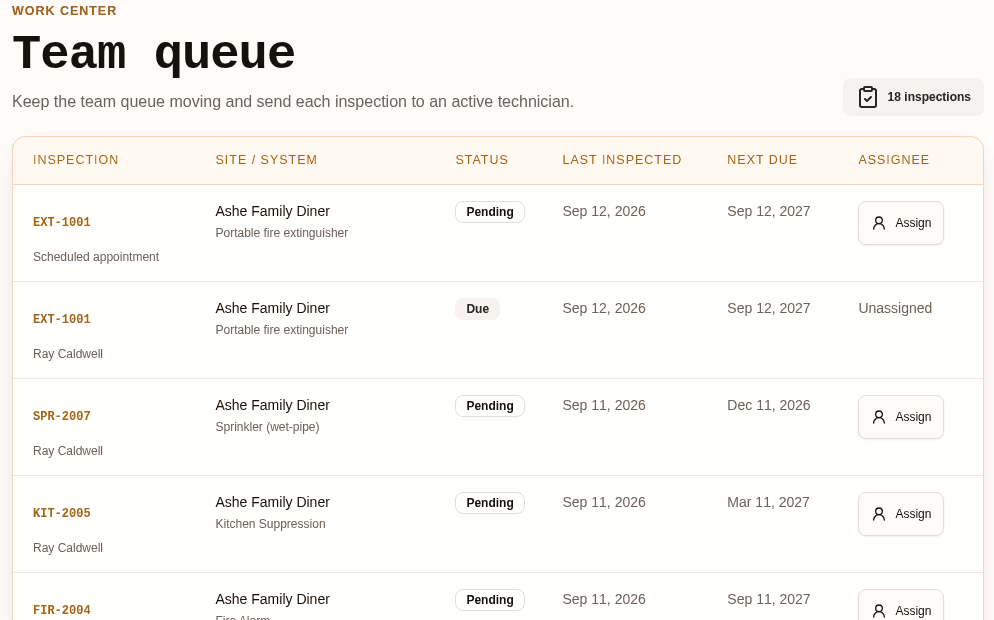
InspectWarden team queue listing each inspection with site, system type, last inspected date and next due date

02 · Quote the repair on site

Every deficiency is a repair job waiting for a price.

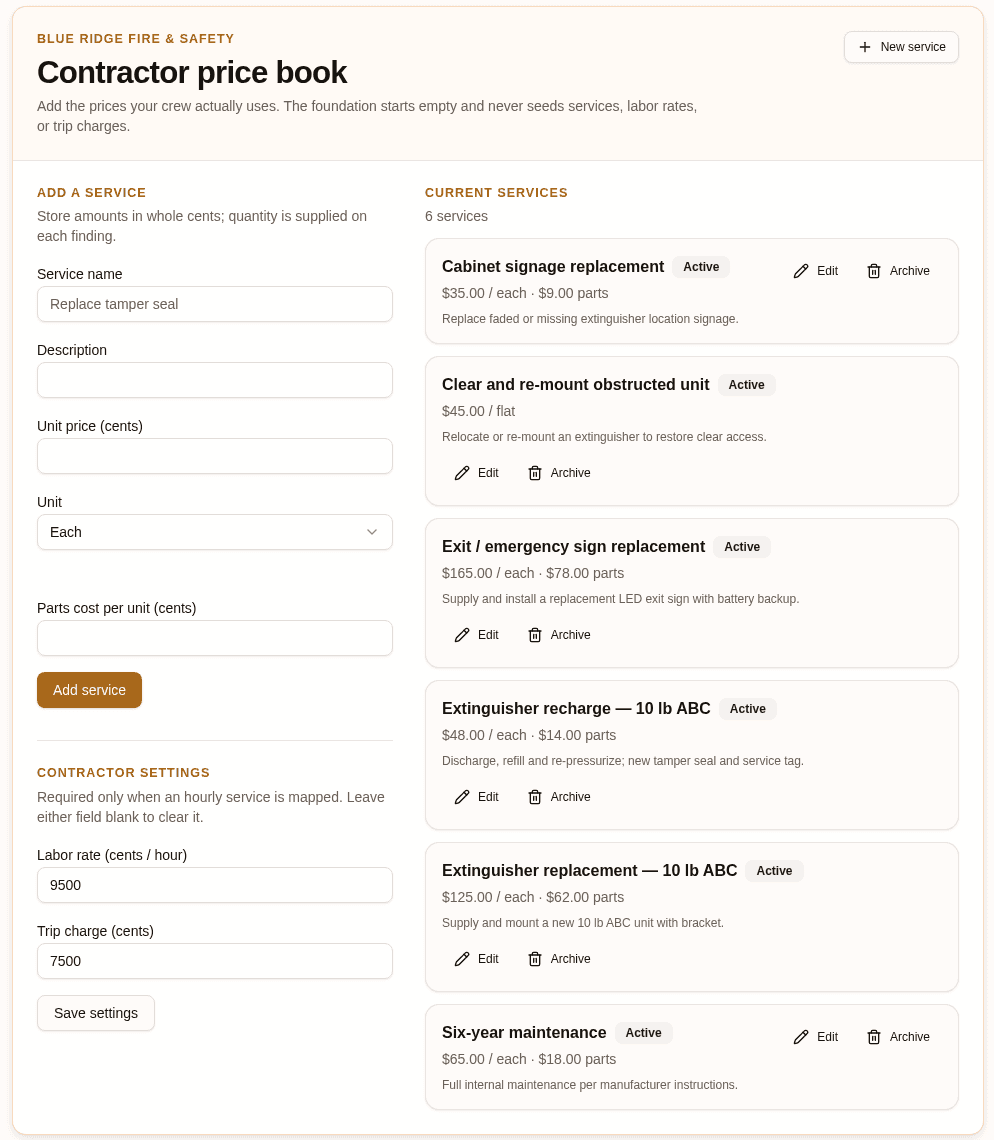
A failed gauge, a missing tamper seal, a blocked unit: each one is corrective work. Log it with a photo while you are standing in front of it, then attach a service from your own price book. InspectWarden builds the estimate, adds your trip charge, and gives you a PDF to hand the customer.

How to set it up

  1. 1Open Price book and add the services you actually sell, with your prices and parts cost.
  2. 2Set your labor rate and trip charge once.
  3. 3During an inspection, log the deficiency with notes and a photo.
  4. 4Attach the matching service and quantity; the estimate is created for you.
InspectWarden contractor price book with services, unit prices, parts cost, labor rate and trip charge

03 · Book it and do it

When the customer says yes, the estimate becomes a work order.

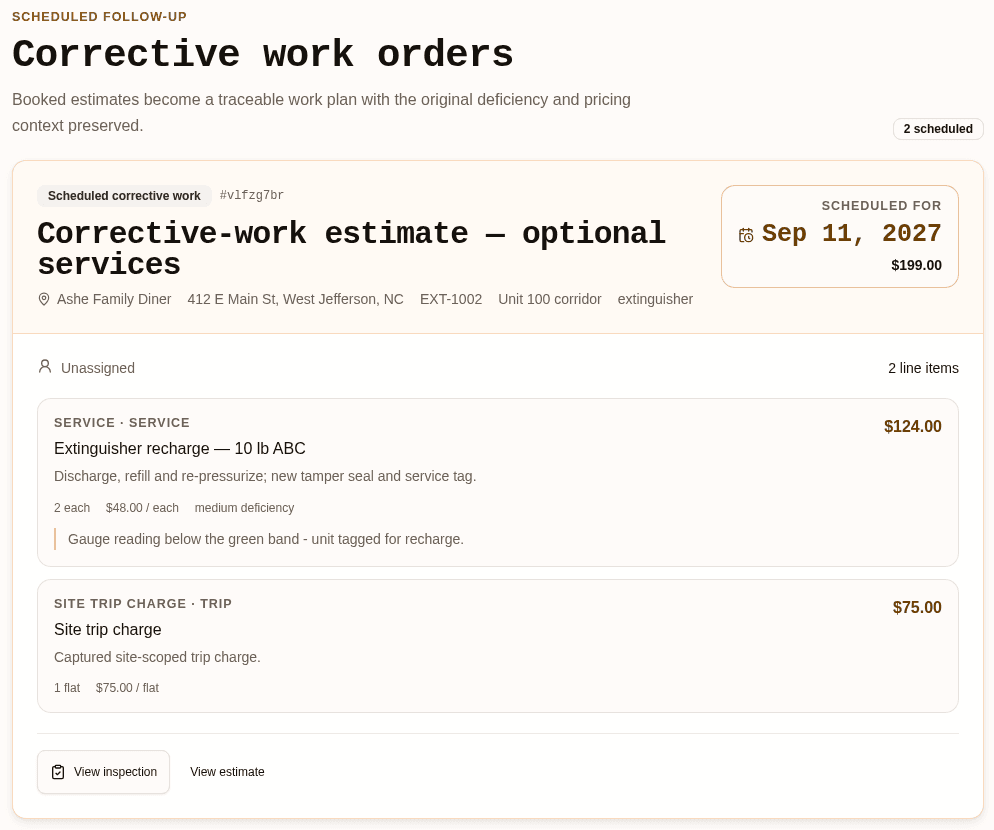
Mark an estimate sent, then booked. The booked estimate turns into a scheduled work order with the original finding, the line items and the price attached, so the tech who goes back knows exactly what was sold and why.

How to set it up

  1. 1Send the estimate PDF to the building contact.
  2. 2Mark it Booked when they approve.
  3. 3Create the work order from the booked estimate.
  4. 4Assign it and close the deficiency with a corrective note when the work is done.
InspectWarden corrective work order created from a booked estimate, showing site, asset, line items and scheduled date

04 · See the money

Know what you have quoted, and what is booked.

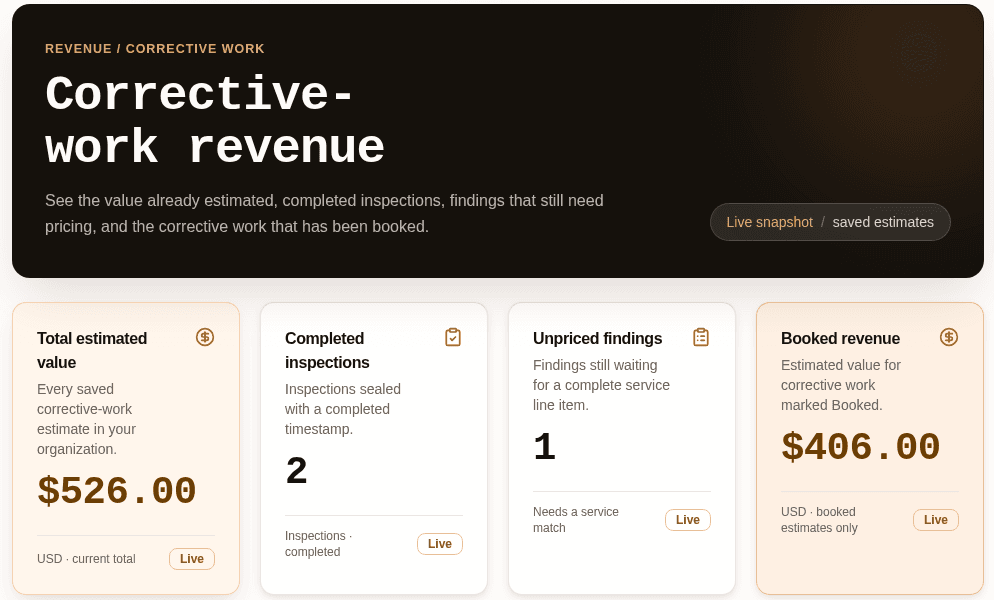
The revenue view totals every saved estimate, shows booked corrective work, and counts findings that still have no price on them. Unpriced findings are the easiest money to go after: the problem is already documented, it just has not been quoted yet.

How to set it up

  1. 1Open Revenue once a week.
  2. 2Work the unpriced findings first: attach a service to each one.
  3. 3Follow up on estimates that are sent but not booked.
InspectWarden revenue view with total estimated value, completed inspections, unpriced findings and booked revenue

05 · Sell more per building

One app for 16 system types.

If you already inspect the extinguishers at a restaurant, the kitchen suppression, exit lighting, fire alarm and sprinkler work is in the same building. InspectWarden handles all of them with the same queue, checklists, deficiencies and reports, so adding a service line does not mean adding another piece of software.

How to set it up

  1. 1Add the other systems at buildings you already serve.
  2. 2Use the shared checklist library so every tech records the same items.
  3. 3Quote the added work from the same price book.

06 · Keep the customer

Owners get their own portal. You look like the organized one.

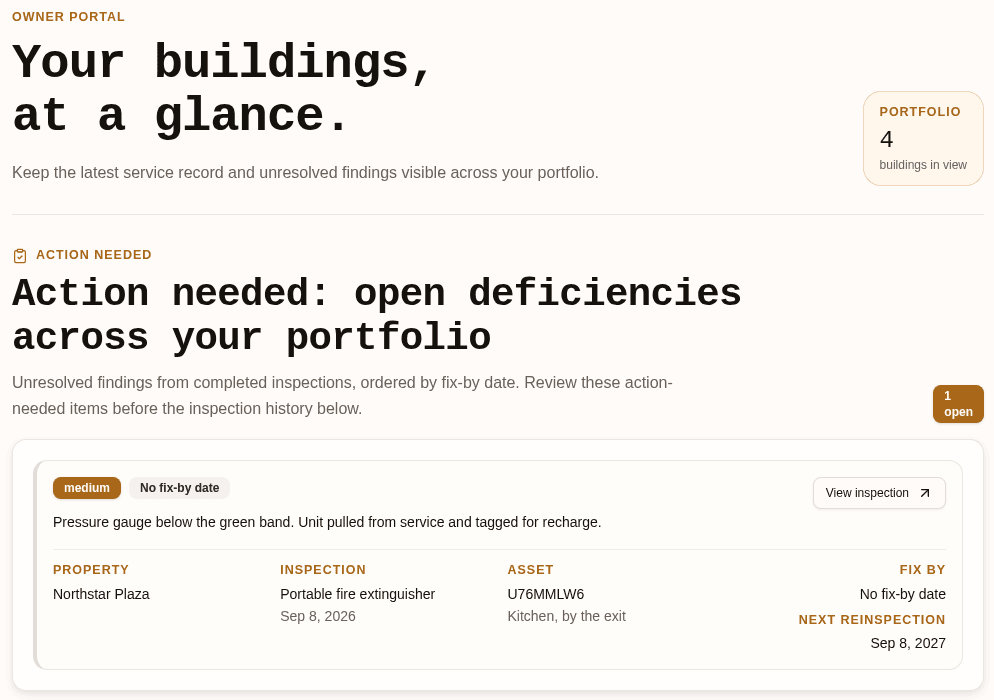
Building owners and managers get the latest inspection record and any open findings in a portal of their own, and you can email the finished report straight from the inspection. Your logo and business details go on the report cover. Customers who can see their records easily have less reason to shop around.

How to set it up

  1. 1Upload your logo and business details in Team settings.
  2. 2Add the owner contact to each site.
  3. 3Finalize the inspection and email the report to the owner in one click.
  4. 4Send the portal link from the site contact.
InspectWarden owner portal showing buildings in view and open deficiencies with property, inspection and asset details

07 · Grow the crew

Add technicians without adding chaos.

Invite technicians, assign inspections from the queue, and keep everyone on the same checklists. The Crew and Multi-company plans add seats as you hire, and the audit history shows who did what.

How to set it up

  1. 1Invite techs from Team settings.
  2. 2Assign inspections from the Team queue.
  3. 3Review the audit history when you need to know who changed what.

Your first week

Set up once, then it runs.

  1. Day 1

    Import your sites and assets from a spreadsheet using the CSV templates.

  2. Day 2

    Build your price book: services, parts cost, labor rate, trip charge.

  3. Day 3

    Upload your logo and business details for report covers.

  4. Day 4

    Run your first inspections in the field and log findings with photos.

  5. Day 5

    Attach services to findings, send estimates, and check the revenue view.

Questions

Before you start

Is the demo data real?
The screens are from the live application running a sample company with sample buildings and prices. The videos are dramatized for demonstration purposes.
Does InspectWarden set my prices?
No. The price book starts empty. You enter the services you sell and what you charge, and estimates are built from your numbers.
Does using InspectWarden make a building compliant?
No. InspectWarden records the inspection work you perform. Requirements vary by jurisdiction and AHJ, and estimates are marked as optional services.
How do I try it?
Every plan starts with a 14-day free trial. Import your customers, run a few inspections, and see what your findings are worth.

Try it on your own route

Put your next week of inspections in InspectWarden.

Start the trial, import a spreadsheet of your buildings, and quote the first finding you log.